
Why editing is guarded
Communication buttons should communicate. LibreAAC therefore keeps editing controls out of the normal interface and asks for confirmation before changing what board buttons do.
To reach editing:
- Press the large red X ten times to reveal the management row.
- Select Edit.
- Read the confirmation and select Unlock editing.
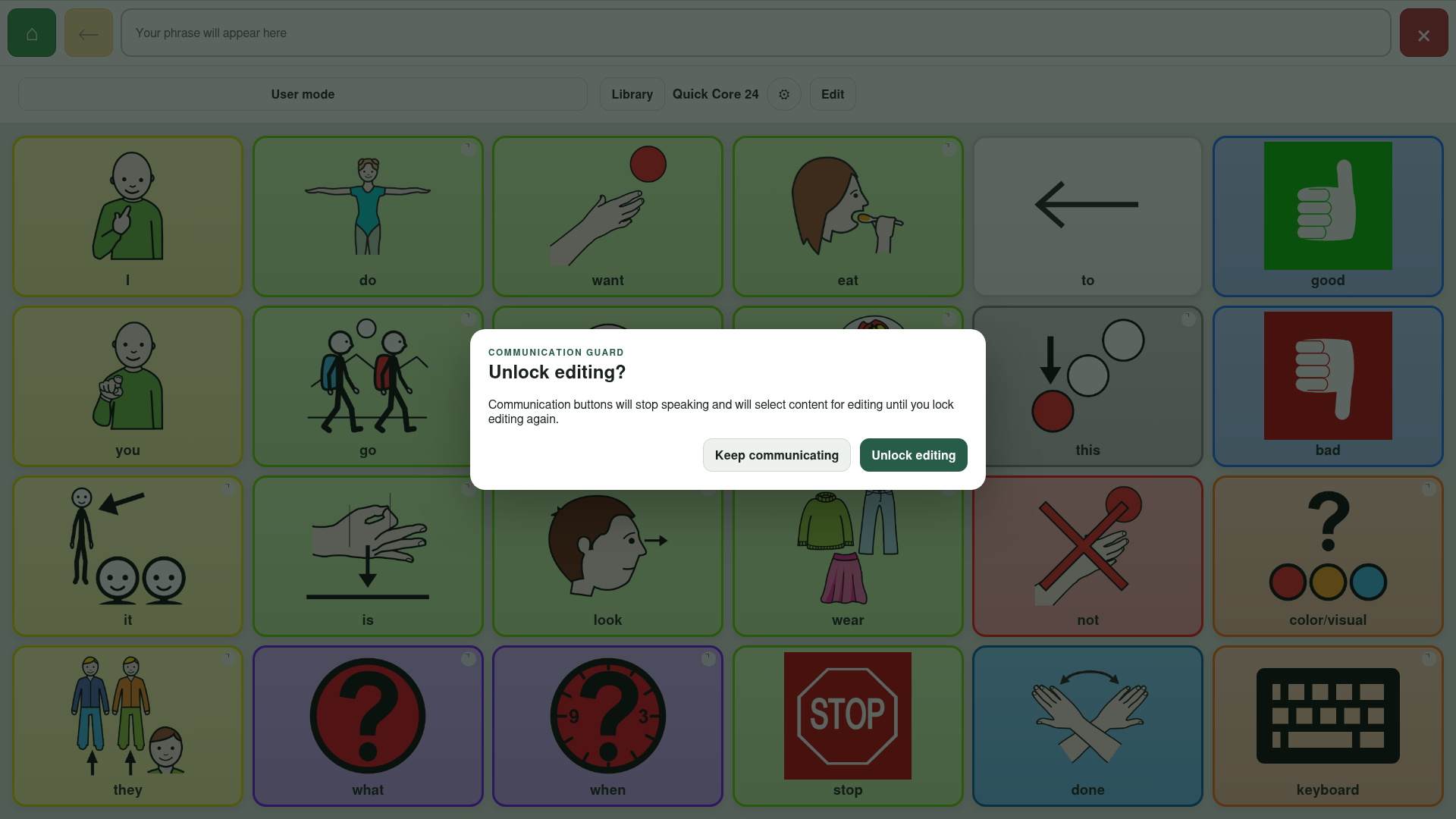
When editing is unlocked, selecting a board button opens its editor instead of speaking. A yellow notice remains visible until editing is locked.
Edit a communication button
Select a button while editing is unlocked. The button editor can change:
- the visible label;
- its spoken text;
- what the button does;
- a link to another board in the set;
- the assigned image or a newly selected image file;
- the assigned sound or a newly selected sound file; and
- background and border colours.
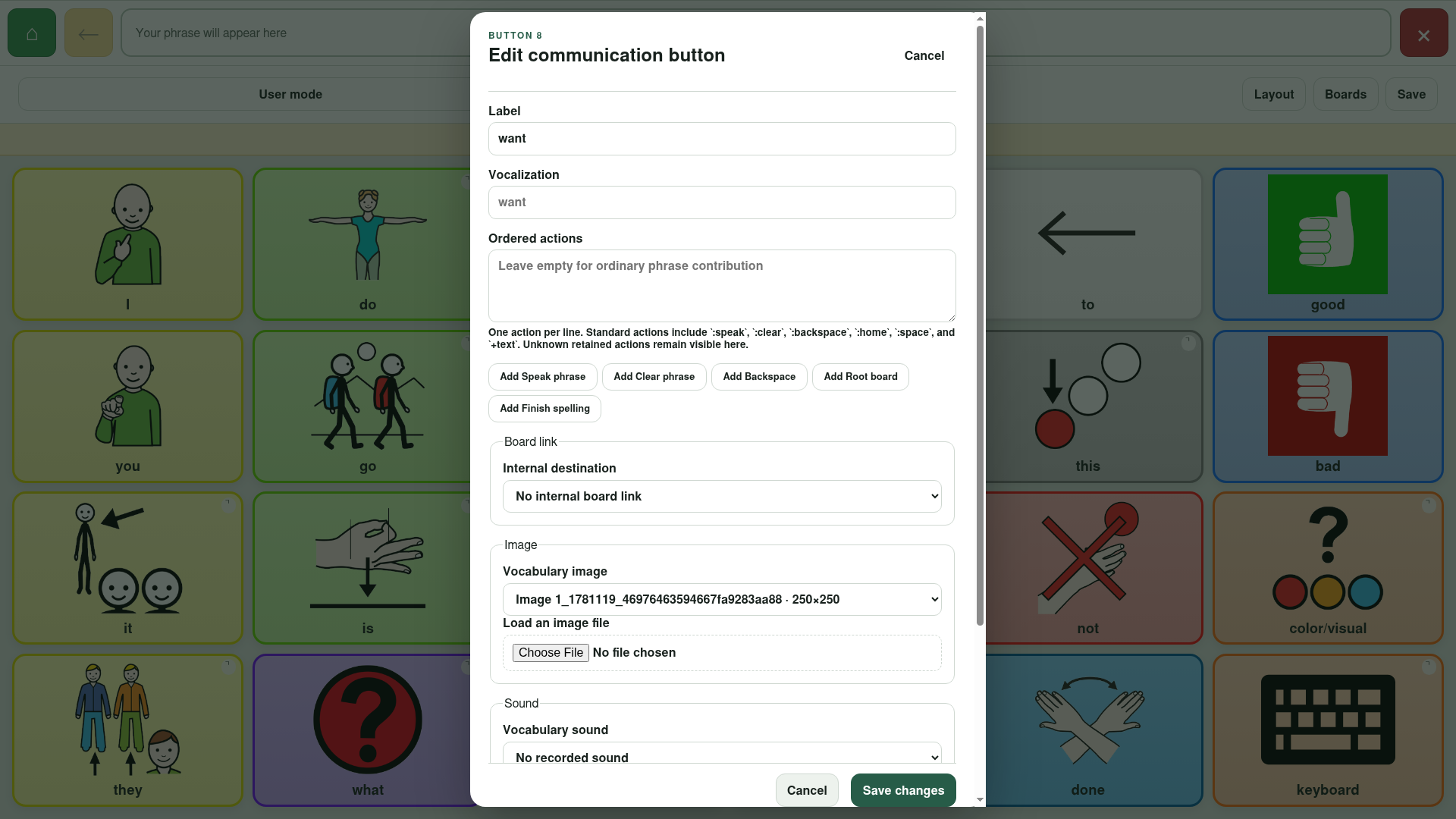
Ordinary communication buttons normally have no explicit action: their word is added to the phrase according to the selection setting. Standard actions that can be added include Speak phrase, Clear phrase, Backspace, Root board and Finish spelling.
LibreAAC keeps additional Open Board Format properties that it does not edit. If a button contains such data, the editor says it will remain unchanged.
Edit the grid layout
Select Layout while editing is unlocked. The layout editor preserves empty cells and provides controls to:
- move buttons through the grid;
- leave cells empty;
- place currently unplaced buttons; and
- retain button records when they are not placed.
Select Save layout to apply the change to the local copy stored in LibreAAC.
Manage every board in an OBZ package
Select Boards to view the complete board set. Each entry shows its path, button count, incoming and outgoing links, and whether it is the home board or cannot be reached from the home board.
For an OBZ package, board management can:
- create a new board;
- change a board’s name, locale, description, rows and columns;
- set another board as the home board;
- duplicate a board; and
- delete a board that is not the home board after confirmation.
If rows or columns are reduced, buttons from removed cells become unplaced; their button records are not deleted.
Deleting a board can leave incoming links unresolved. LibreAAC reports the number of affected links before confirmation, but the person managing the board set should review navigation afterward.
Finish editing
Select Lock editing as soon as changes are complete. Communication buttons then speak and build phrases again.
Selecting User mode also locks editing and hides the management row.
Save a portable backup
Edits are protected in the local working library as they are made. That is not the same as creating a portable file. Use Save to export a complete OBZ or an OBF board to a user-selected location.
Continue with Opening and saving files.