Open Settings
On the library screen, select Settings directly. From a communication board, press the large red X ten times and select the cog button.
Settings are saved locally and apply across board sets.
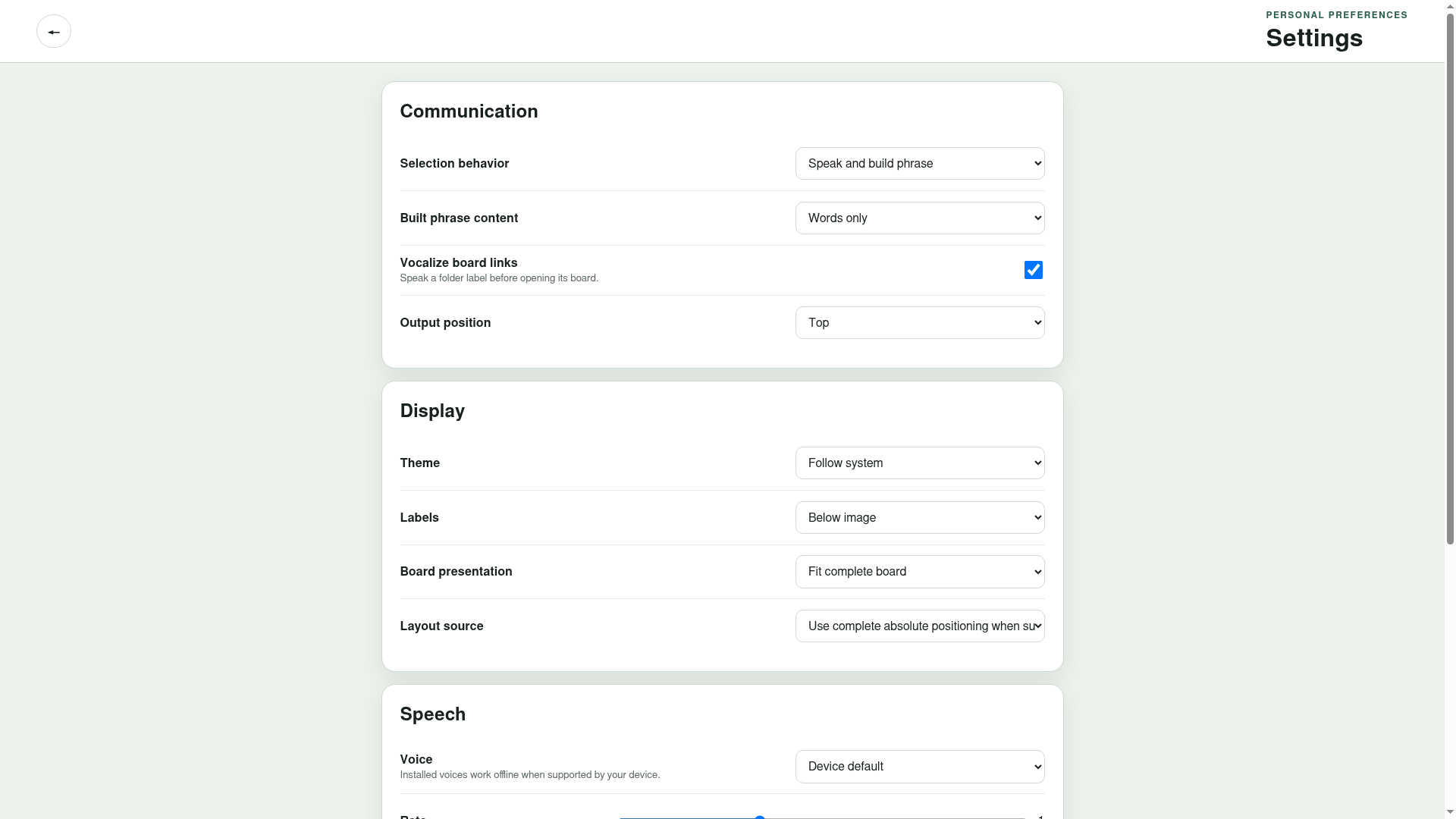
Communication
What happens when a button is selected
- Speak and build phrase — speaks an ordinary selection and adds it to the phrase. This is the default.
- Build quietly — adds selections without speaking each one.
- Speak without building — speaks individual selections and hides the phrase row.
Built phrase content
Choose Words only (the default), Images only, or Both words and images. This changes the phrase row, not the board buttons.
Speak board links
Enabled by default. LibreAAC speaks the label of a linked-board button before opening its destination.
Output position
Place the phrase row at the Top (default) or Bottom of the board.
Display
Theme
Choose Follow system (default), Light, or Dark.
Labels
Show labels Below image (default), Above image, or Hidden visually. Hidden labels remain available to assistive technology.
Board presentation
- Fit complete board is the default and scales a complete board into the available area.
- Large buttons with scrolling keeps buttons larger and permits the board area to scroll.
Layout source
- Use the board’s saved layout when supplied respects layout information in the board. This is the default.
- Always use grid fallback presents the board through its declared grid.
Speech
Choose the Device default voice or another voice installed on the tablet. Installed voice availability is controlled by Android and the tablet’s speech engine.
Adjust:
- Rate from 0.5 to 2;
- Pitch from 0.5 to 2; and
- Volume from 0 to 1.
Select Preview voice before returning to communication.
Scanning
Automatic scanning is disabled by default. When enabled, LibreAAC moves a strong focus highlight through available communication controls at the chosen interval.
The scan interval can be set from 700 to 5000 milliseconds.
See Access and scanning for manual keyboard movement and selection controls.
Choosing settings together
Display and speech settings can materially affect access and language use. Where appropriate, involve the communicator, family, carers, educators and an speech pathologist or other AAC professional. Revisit choices as access needs and familiarity change.