Before you begin
LibreAAC is designed primarily for a landscape Android tablet. It supports Android 8.0 and later. The app does not require an account and does not need an internet connection during normal use.
If several people support the communicator, agree who will manage files, settings and board changes. Export important work as an OBF or OBZ file and keep a separate backup.
The one-time return message
The first time LibreAAC opens, it explains how to return to the communication board selection menu. The I understand button becomes available after five seconds. Once acknowledged, this dialog is not shown again on that installation.
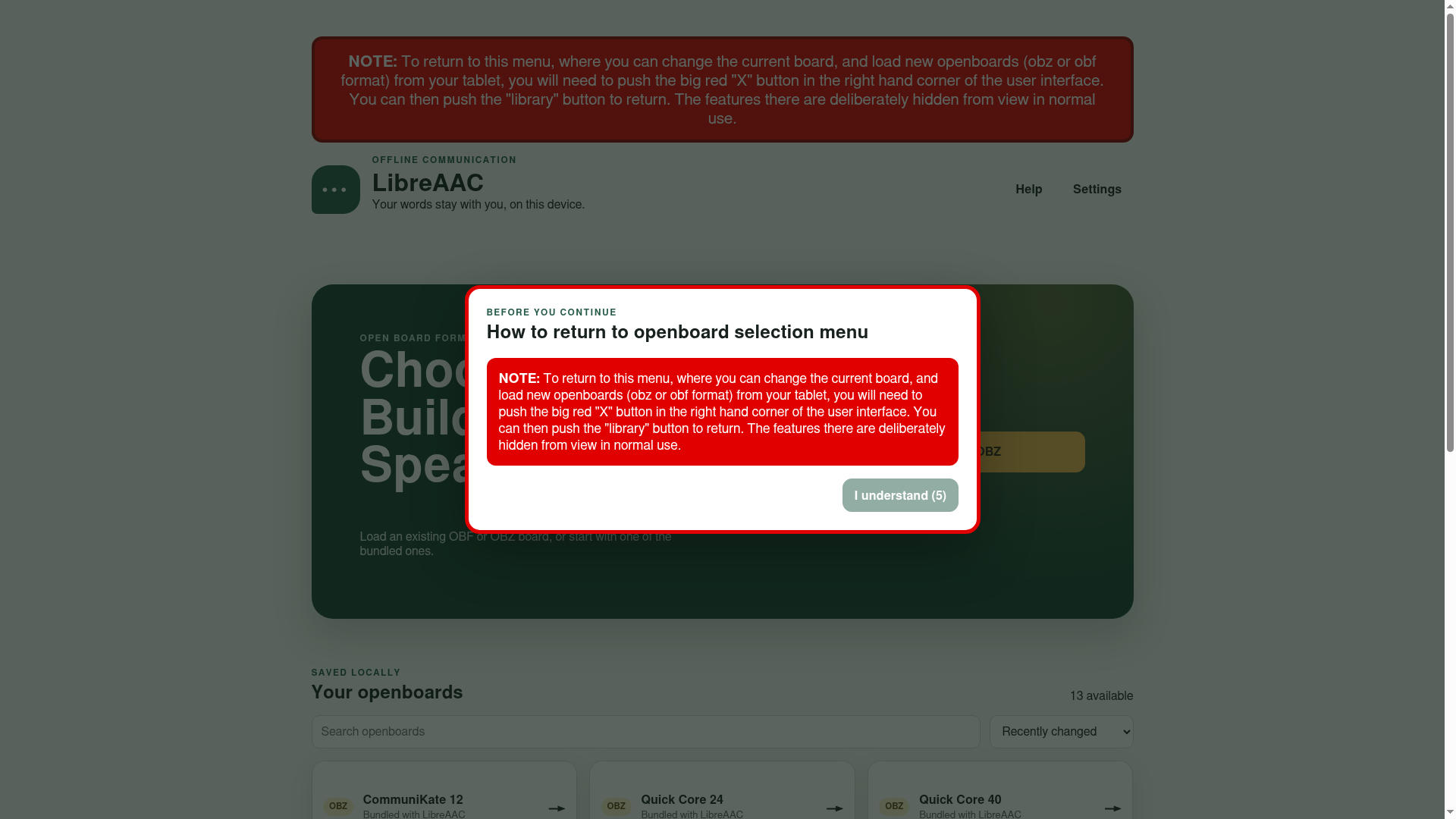
Remember the route back: press the large red X at the top right ten times. A management row appears. Select Library to return to the communication board selection menu.
The X still clears the phrase each time. The ten presses are deliberate so that everyday use does not expose management controls accidentally.
Open a bundled board
- Select a board under Your communication boards. A smaller board such as Quick Core 24 is a practical place to become familiar with the interface.
- Wait while LibreAAC imports the board. The first opening may take some time because the OBZ package must be unpacked and stored locally.
- When the board appears, select a few communication buttons. By default, each button is spoken and its word is added to the phrase row.
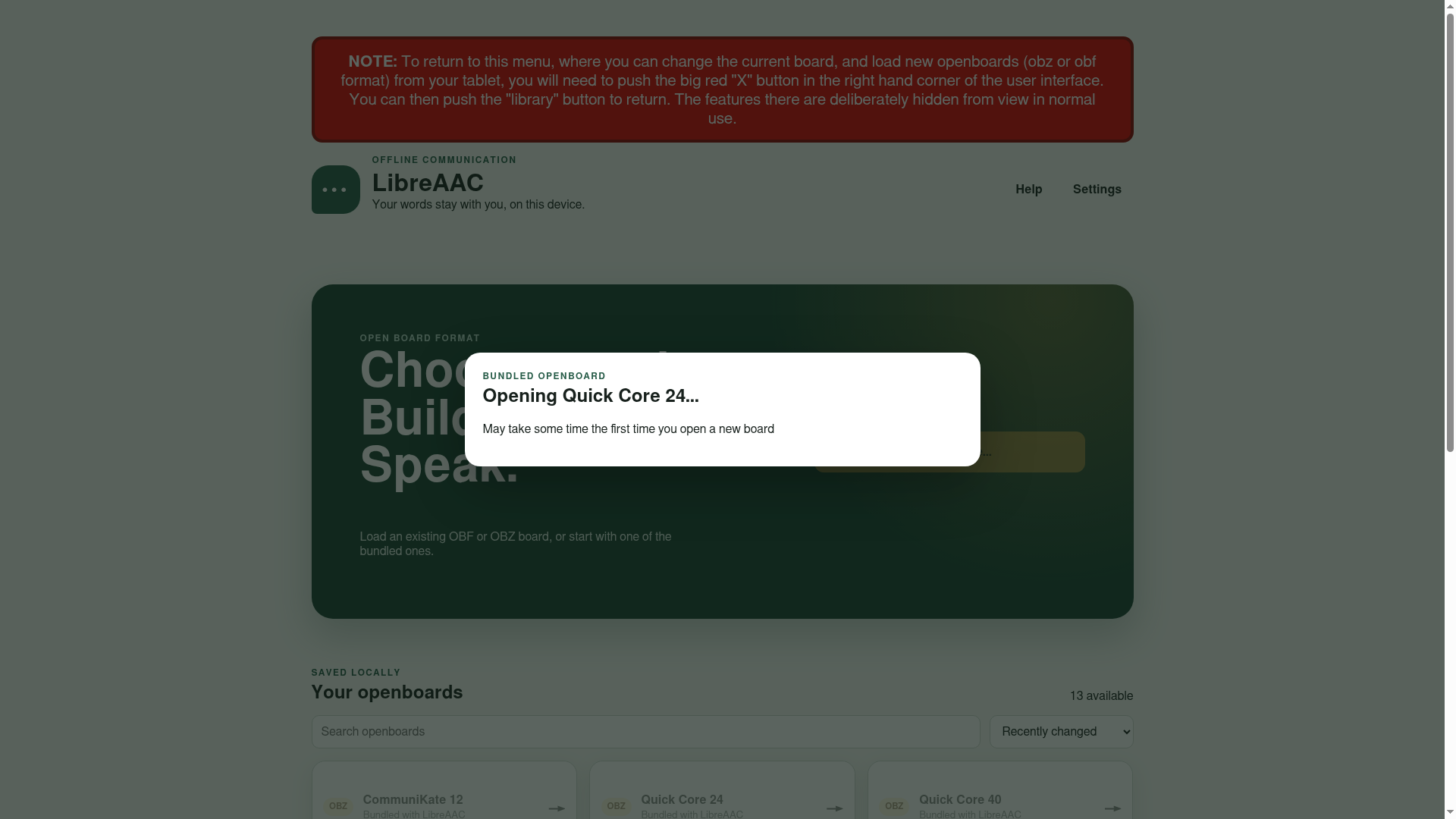
Once imported, that board becomes a local copy stored in LibreAAC and no longer needs to be unpacked at each opening.
See Choosing an Open Board vocabulary to compare the bundled vocabulary families and grid sizes before deciding which ones to trial.
Load an existing board file
From the library, select Load OBF or OBZ, then choose a file through Android’s system file picker.
- OBF is normally one communication board.
- OBZ is a package containing a complete set of linked boards and media.
LibreAAC reviews the file before replacing anything. If it finds compatibility information that needs attention, it presents a load review. If loading fails, the active vocabulary remains unchanged.
Learn the three everyday controls
Returns to the home board of the current board set.
Returns through the boards actually visited.
Clears the phrase. Ten presses also reveal management controls.
Home and Back do not clear the phrase, so a person can move through several boards while building one message.
Suggested first-session checklist
- Confirm that the chosen symbols and number of buttons are appropriate.
- Check the tablet’s speech voice and volume.
- Practise Home, Back and speaking a complete phrase.
- Decide whether labels, board fit or scanning need adjustment.
- Show supporting adults how to reveal Library, Settings and Edit.
- Export a backup after making important changes.
For a tablet intended primarily for communication, continue with Dedicated tablet setup after the board, speech and administrator controls have been tested.
Continue with Communicating with LibreAAC.