What appears in the library
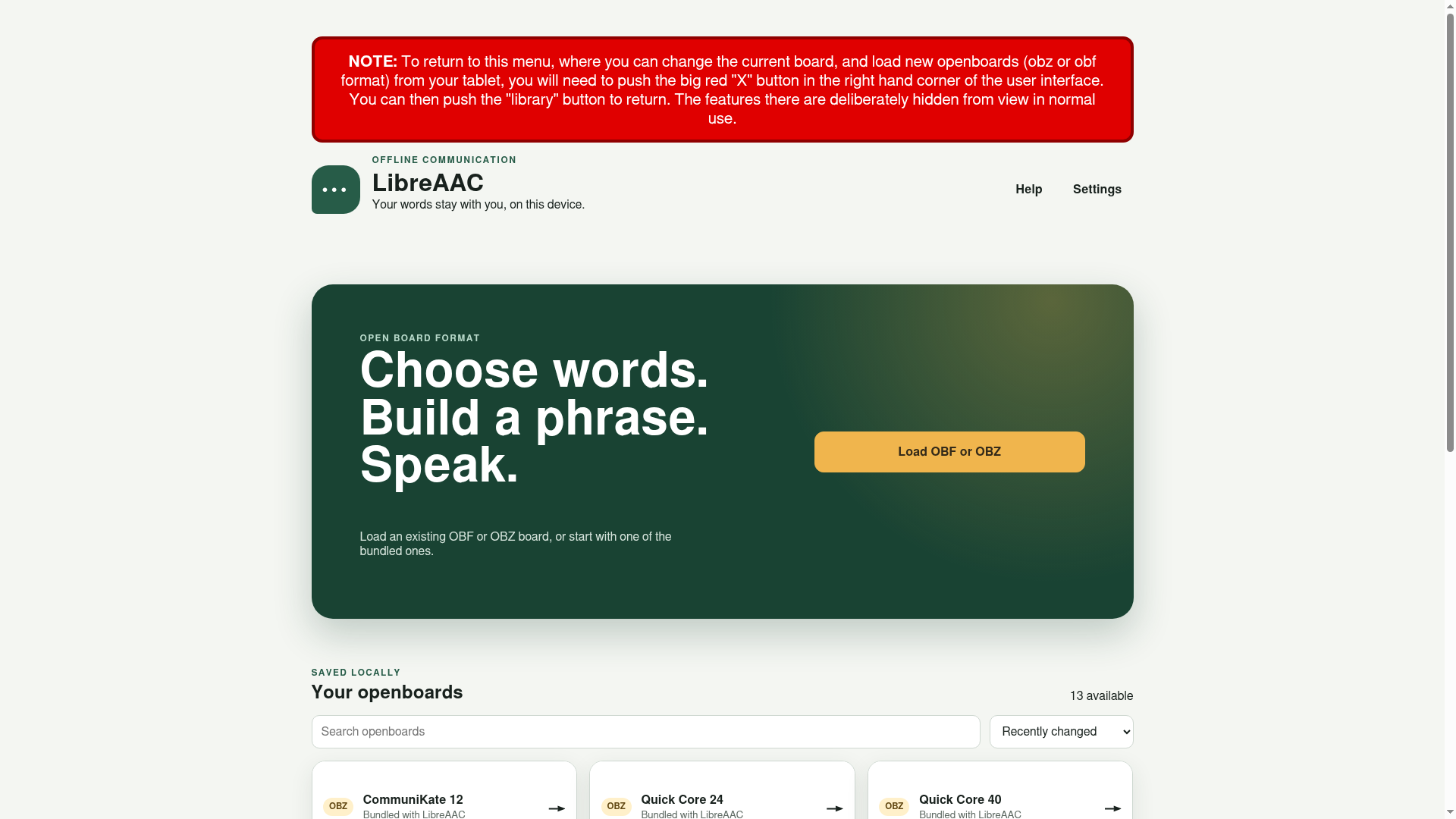
The Your communication boards screen combines:
- included communication boards that have not yet been imported; and
- board files already stored as local working copies on the tablet.
Use search to filter by name. When more than one item is available, sort by recent change, name, file type, or compatibility notices.
If you are unsure which bundled vocabulary to start with, see Choosing an Open Board vocabulary. Grid size is an access consideration, not an age, intelligence or ability level.
Return to the library from a communication board
- Press the large red X at the top right ten times.
- When the management row appears, select Library.
- Choose another local board or load a new OBF/OBZ file.
The management row is deliberately hidden during ordinary communication.
Bundled and local cards
A bundled card says Bundled with LibreAAC. Selecting it imports the OBZ package. Once imported, it becomes an ordinary local working copy and the bundled card disappears.
A local card shows the number of boards in the package and any compatibility notices. Select Details to review:
- source filename and file type;
- boards and their declared attribution;
- images and sounds;
- other retained package files; and
- compatibility warnings.
Delete a local copy
Select Delete local copy on a local card, then confirm. This deletes LibreAAC’s protected working copy. It does not delete an OBF or OBZ file that was separately saved to a user-selected folder.
Deleting the only local copy can remove unsaved changes. Export an important board set before deletion, clearing application data, or uninstalling.
Help and settings
The library page provides direct Help and Settings buttons. These controls are available before a board is selected. On a communication board, they remain behind the ten-press management guard.